- June 27, 2025
- Team Maestroweb
- June 27, 2025
- Team Maestroweb
How to Build a WordPress Website [Step-by-Step Guide in 2026]


Need help building a WordPress website?
Many businesses struggle to grow because they lack a proper online presence. Without a website, it becomes difficult to gain trust, showcase services, or reach the right audience. A professionally built website solves this by making your business accessible, credible, and ready to convert visitors into customers.
In This Article
Introduction
Did you know that WordPress powers over 43% of all websites on the internet? From local startups to global enterprises, businesses around the world trust WordPress for its flexibility, ease of use, and powerful features. It’s clear that WordPress isn’t just popular — it’s a proven website builder for those who want a fully custom site tailored to drive results and boost conversions.
Whether you're a complete beginner or a business owner looking to establish credibility, attract customers, or sell products online, this step-by-step guide will walk you through how to build a WordPress website without needing any coding skills.
Step-by-Step Guide to Building a WordPress Website
This Section Outlines the Complete step by step guide on How to Build a WordPress Website as a Complete Beginner from Planning your Website to Launching it Live.
Step 1: Plan Your Website
Before Starting to Build Website on WordPress, Think and define what you need from your website -is it meant to generate sales, showcase a portfolio, or serve any another purpose?
Key Points to Think:
- What is the purpose of your website? (Blog, business site, portfolio, e-commerce, etc.)
- Who is your target audience?
- What core pages do you need? (Home, About, Services, Blog, Contact, etc.)
Pro Tip: After answering these questions, get a pen and paper to sketch your layout idea or use a design tool like Figma to create a simple Design Idea
Step 2: Choose a Domain Name and Hosting Provider
1. Pick a Domain Name
Your domain should be:
- Reflective of your brand/business
- Easy to spell
- Short and memorable
Use tools like Namecheap, GoDaddy, or Google Domains to purchase.
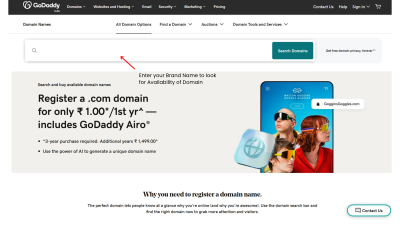
2. Select a Hosting Provider
Choose WordPress-optimized hosting with features like one-click install, automatic updates, and free SSL.
Top Hosting Providers:

Step 3: Install WordPress
Most hosting providers offer one-click WordPress installation via cPanel or their custom dashboard.
Steps to Install:
- 1. Log into your hosting account.
- 2. Navigate to Websites List and Add Website
- 3. Click 'WordPress'
- 4. Setup your admin username, password, and email
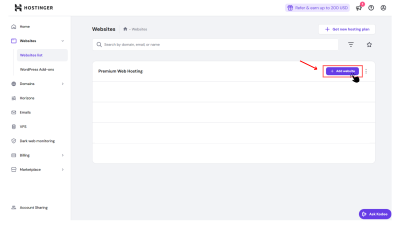
5. After Setup use yourdomain.com/wp-admin to access your WordPress admin Dashboard
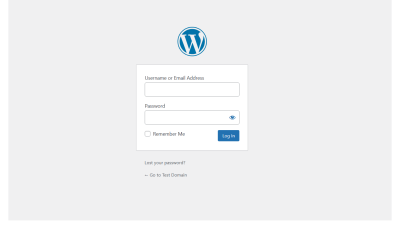
Step 4: Configure Basic WordPress Settings
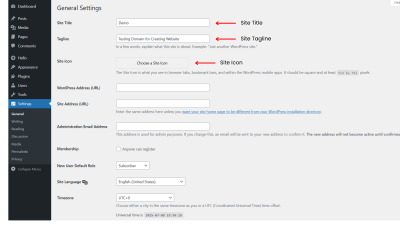
Configuing basic settings liks Site Title & Tagline, Permalinks, Timezone & Language
- 1. Login to your WordPress dashboard.
- 2. Navigate to Settings > General
- 3. Fill your Site info (Title and Tagline)
- 4. After Select your Default Site Language and Time zone
- 5. Click Save Changes
- 6. After Navigate to Permalinks Settings
- 7. Select the 'Post name' option for SEO-Friendly url's
- 8. Click Save Changes
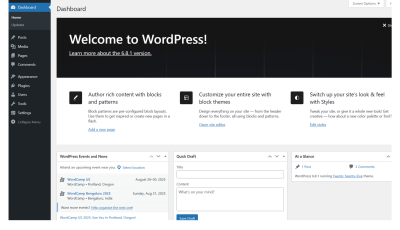
Step 5: Install a Theme
Funfact: WordPress has over 13,000 free themes, which is way more than most no-code website builders offer. This means you get a lot more choices to design your website the way you want.
Steps to Install a Theme:
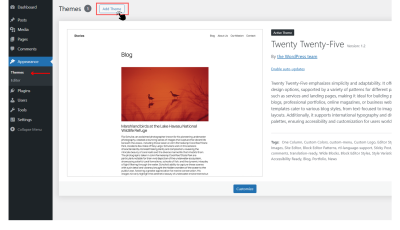
- 1. Go to Appearance > Themes > Add New
- 2. Search and Select your Preferred theme
- 3. Click 'Install' and then 'Activate'
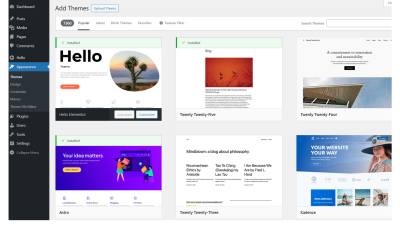
Themes like Hello Elementor are lightweight and built for speed, they are great choice for designing with page builders and After installing the theme successfully, you're ready to go to the next step! i.e Installing the Essential Plugins
Step 6: Installing Essential Plugins
Plugins add functionality to your website. But remember, only install the plugins you really need. Too many plugins can slow down your website or cause conflicts. So, choose wisely and keep your site lightweight and fast.
To Install Plugin:
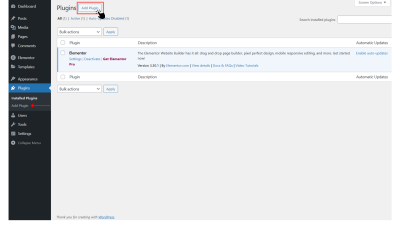
- 1. Navigate to Plugins > Add New
- 2. Search or Select your Required Plugin
- 3. Click Install Now and Activate Plugins
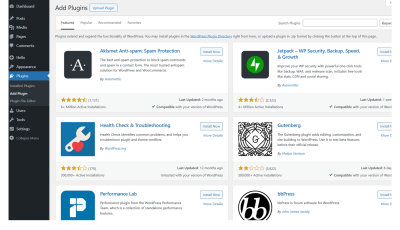
Common Essential Plugins for a Website:
- Rank Math / Yoast SEO for SEO
- Elementor or Bricks Builder for Developing Pages
- Wordfence or Solid Security for Security
- UpdraftPlus for Backups
- Forminator or WPForms for Contact Forms
- SiteKit or MonsterInsights for Website Analytics
- Lite Speed Cache for Cache / ImageOptimization / Minify CSS/JS
Real Fact: WordPress lets anyone create their own plugin and share it with others. That’s why there are more than 70,000 plugins available. People all over the world build plugins to add new features or fix problems.
Step 7: Creating Essential Pages
To Create Pages:
Go to Pages > Add New
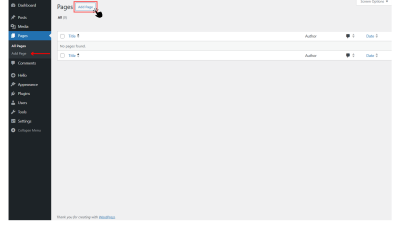
This is where you can Create important pages like Home, About, Services, and Contact. You can add your own content, images, and even choose a layout that fits your design. Don’t forget to give each page a proper title and click Publish when you’re done.
You can create and design pages using WordPress’s Gutenberg editor blocks or you can Install a Page Builder Plugin Like Elementor to design your site more creatively and effectively
Step 8: Setting up Header, Footer and Nav Menus
To Create Menus:
Navigate to: Appearance > Menus
Here you can create menus with the pages you have created using the pages option on the left sidebar or you can also create custom menus using Custom Links option
To Create Header and Footer:
Navigate to: Appearance > Customize > Header & Footer
By selecting the Header & Footer option in the customizer, you can start designing these sections easily. Just choose the widgets you want like Site-logo, menu, social icons, or text and drag them into place. It’s a simple way to build a professional-looking header and footer.
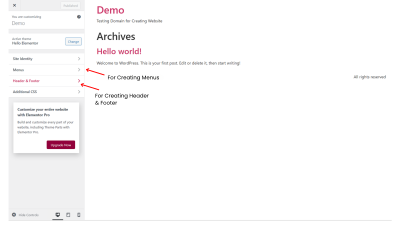
There’s an even easier way to drag and drop widgets by using Elementor. It gives you full control to design your header and footer.
Step 9: Configure SEO Settings
By Using the Rankmath SEO plugin you can do the on-page seo settings like:
- Meta Title
- Meta descriptions
- Add alt text to images
- Schema markup
- Focus keywords
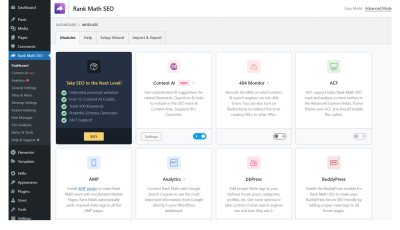
For Technical SEO we can use LiteSpeed Cache
- Image Optimization
- Minify CSS
- Minify JS
Step 10: Enable Backups and Security
Set up regular backups:
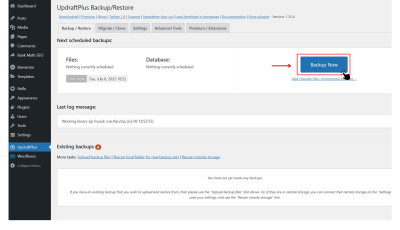
- UpdraftPlus lets you schedule automatic backups and store them on cloud services or even on local storage of your computer
Secure your site with:
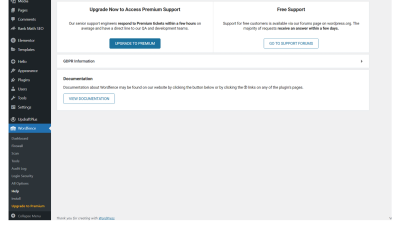
- Wordfence (firewall + malware scanner)
- Limit login attempts
- Use strong passwords
Step 11: Final Touch & Go Live
Hurrah! You've reached the final step — your website is live and ready for the world. You did it!
Key things to note before going live:
- Mobile responsiveness
- Website Speed
- Check all Links
- SEO titles and descriptions are set
Bonus Tips
- Post regular blog content to gain Organic website traffic
- Use Google Analytics to track and monitor Website analytics
- Update plugins and themes regularly
- Back up your site regularly
By doing these tasks regularly, your website will stay updated, perform better, and start attracting more organic traffic over time. Consistency is the key to long-term growth!
Conclusion
WordPress website development is not just about getting a website live it’s about end-to-end Strategy from Planning to building an optimized, functional, and engaging Website that supports your goals and delivers real value to your audience.
With the right approach, tools, and SEO strategies, anyone can build a successful WordPress website — whether you’re a freelancer, small business, or content creator.
Need Support on Creating Your WordPress Website?
Building a WordPress website can be tricky — especially if you're just starting out or don’t have the time to handle everything yourself.
That’s where Maestroweb comes in. We’re a duo freelancers have expertise in creating a clean, functional, and responsive website that suits your brand goals without any technical stress.
Lets Build a Website For you— Give us a Chat 88381-83604 or fill out the contact form—your dream website is just a step away!